Blog: Secrets from the Chef
Exporting design comp from AI to PSD the right way: part 2 – useful tips
 Author: Alexey Golovanov
31 May 2011

Not so long ago Yegor Gilyov published his article “Exporting design comp from AI to PSD the right way” in which he told us about three steps required to avoid problems when converting AI-files to PSD. The required output is a picture that 100% matches its vector source.
I would like to deepen into the subject and show you a few useful tricks of using the Illustrator for exporting, which would save the time (which is always a limited resource), nerves (that unfortunately are not recoverable) and turn this process into a mere pleasure. So let’s start:
Reducing the time of grouping layers
It’s not a secret that Step 1 (sorting out layers) is the lengthiest process when exporting from AI into PSD. Shortening it can be done as follows:
1. When we group all of the text or other single-type objects into folders, it’s not necessary to locate one object or the other in the panel with a list of layers (which number is almost always exuberant) and drag each object into a separate layer (Illustrator unlike Photoshop, where sifting though the list of layers when dragging any layer is accelerated, will be sticking to each layer for approximately 1/8 of a second and sifting will be very even. It seems like 1/8 of a second is nothing! However, when we have a whole number of objects even such short pauses start to irritate).
It’s much more convenient to click with the white pointer on all required objects (while holding Shift). Illustrator would not allow combining them into a single group (Ctrl+G) (if they are placed in various groups) and attempting to do that will result in the following message:
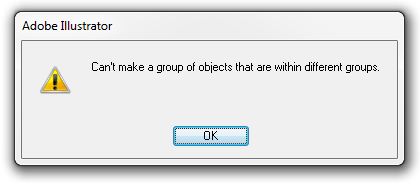
However you can cut them (Ctrl+X) and paste (Ctrl+F) into a new layer. That’s all, folks! It’s extremely convenient! All the objects will be placed into their original locations but in a separate layer that we need.
The important thing here is to make sure that the objects that we group are not located in the folder, which was touched with the style, otherwise it will be lost.
2. Some sub-items such as ‘Same’ and ‘Object’ of Select menu are extremely useful. They let you select all the text layers and all layers with the same appearance (fillings, outlines), which is very convenient for single-type elements on the page: buttons, boxes, etc.
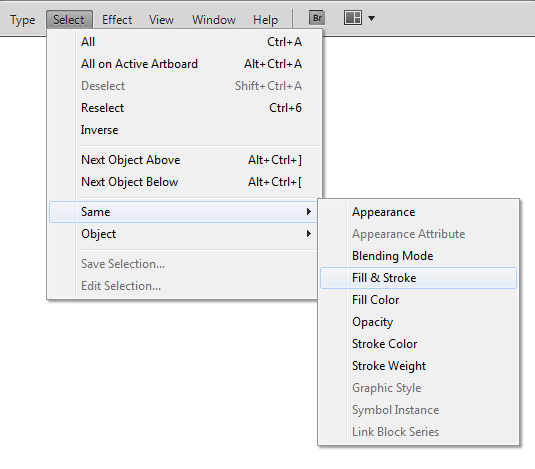
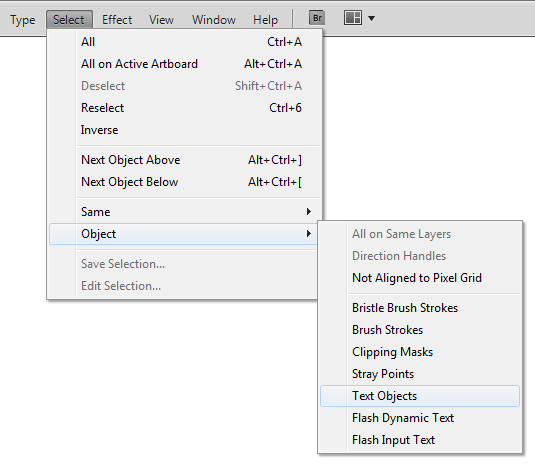
Select → Cut (Ctrl+X) → Paste into a new layer (Ctrl+F) → Ready.
Solving the heavy files export problem
Sometimes upon engaging the Export function and indicating filename even on fast computers the following screen appears during Step 3 (Export) upon the attempt to receive a PSD file:
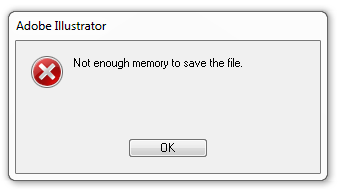
Illustrator is unhappy with the memory allocated to the process while exporting heavy files.
To avoid cutting our large file into a bunch of small pieces and exporting them separately (which, in principle, is one of the ways to address the problem), you could do the following: check the Use Artboards checkbox in the saving window and select Range:1 in the adjacent field (you can put the corresponding number of the screen’s artboard if it is different from 1).
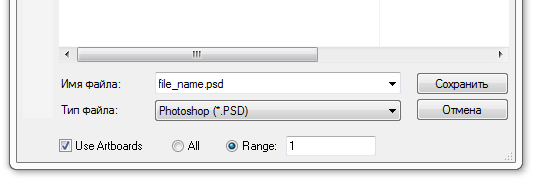
Now Illustrator will do everything as required!
Related entries
Categories
- Adobe Illustrator (15)
- Adobe Photoshop (4)
- Basecamp (3)
- Books (3)
- Case Studies (11)
- Criticism (6)
- Desktop (2)
- Fundamentals (8)
- Future (3)
- Icon design (25)
- iPhone (2)
- Marketing (1)
- Master-class (20)
- Productivity (3)
- Reviews (13)
- Tools (14)
- Turbomilk (2)
- Usability (7)
- Visual style (4)
Terms of Use

These materials can be used for any purposes with obligatory indication of the author.
Leave a comment
You can log in with your twitter or facebook accounts. After authorisation on one of this sites, you'll be able to leave comments here.
If you have an OpenID (for example myopenid.com), use it to authorise.
Log in with your Turbomilk account or register a new one.